

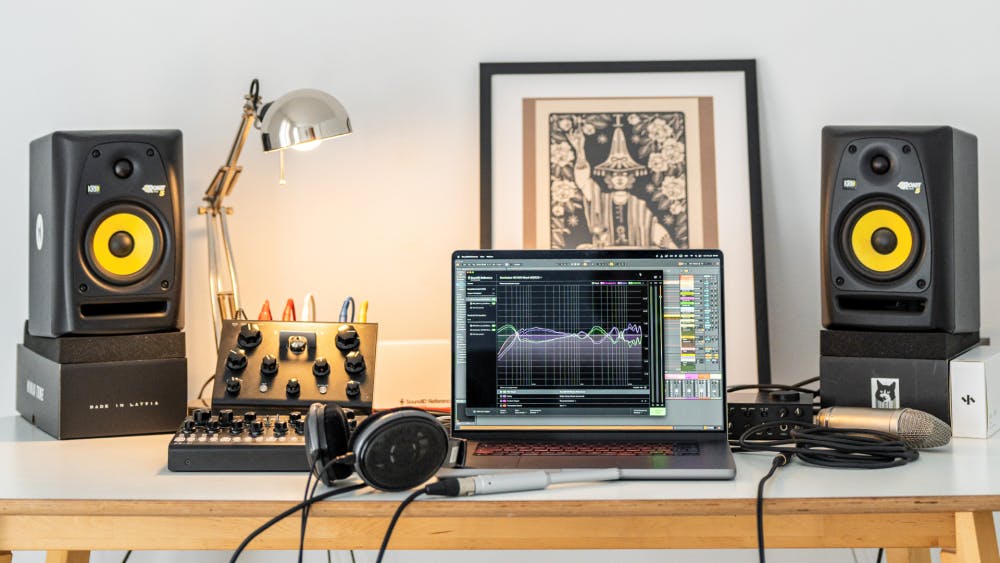
SoundID Reference offers four distinct target curve modes — Flat Target (SoundID SR), Dolby Atmos Music, Custom Target, and Translation Check — designed to meet different studio monitoring needs. These cover everything from neutral reference monitoring to Dolby-standard immersive audio, fully adjustable parametric EQ curves, and real-world playback simulations across 25+ devices. Together, they help audio professionals achieve accurate, translatable sound reproduction across headphones, stereo speakers, and multichannel setups.
Understanding SoundID Reference target curve options
Target curves in SoundID Reference define how your calibrated monitoring system should respond across the frequency spectrum. When you calibrate your speakers or headphones, the software measures your current frequency response and applies corrections to match your chosen target curve. This eliminates guesswork from mixing decisions and helps your music translate across different playback systems.
The importance of this becomes clear when you consider that every room and speaker combination introduces unique coloration. A room may boost low frequencies due to standing waves, or your headphones may have a manufacturer-tuned “family sound” that hypes the highs. Without calibration, you compensate for these inaccuracies in your mix — and those compensations become problems on every other playback system.
SoundID Reference addresses this with four target modes, each serving a different purpose in professional workflows. The software is trusted by over 300,000 studios worldwide and supports 500+ headphone models, stereo speaker systems, and multichannel setups up to 9.1.6 for Dolby Atmos rooms.
What are the four target modes in SoundID Reference?
SoundID Reference provides four target modes, accessible in both the standalone app and DAW plugin (VST, VST3, AU, AAX):
1. Flat Target (SoundID SR) — This is the default mode, based on the SoundID SR (Studio Reference) standard. For speakers, it sets a completely neutral frequency response across all audible frequencies as perceived by the listener in the listening position. For headphones, the Flat Target is designed to emulate neutral-sounding speakers in a well-treated room, matching the tonal character between headphone and speaker monitoring. According to Sonarworks’ analysis of over 100,000 studio setups, roughly 73% of users prefer the flat SR target as their primary monitoring curve.
2. Dolby Atmos Music — This fixed target mode calibrates audio to the official Dolby Atmos Music curve. Users with a Dolby Atmos-compatible setup will want to use this mode for accurate positioning and tonal balance in immersive audio production. (For Dolby’s own calibration and measurement guidelines, see Dolby’s Best Practices for Atmos Music Studios.) Note that the Dolby curve in SoundID Reference may look visually different from the curve published in Dolby’s documentation. This is because the target curve is tied to its measurement methodology. Sonarworks has calculated the transfer function to translate the Dolby Atmos music curve for SoundID Reference’s measurement system, so the resulting sound matches what you’d hear in a Dolby-tuned Atmos room. For more on how SoundID Reference implements the Dolby target in multichannel setups, see our guide on how to choose a target curve for your multichannel setup.
3. Custom Target — A fully-featured parametric EQ that lets you make real-time adjustments to the target curve. It includes Shelf, Bell, Q, Gain, and Frequency Range controls — everything you’d expect from a professional parametric EQ. You can also adjust the calibration frequency range using curtains (sliders that limit low-end, high-end, or mid-range correction). Custom Target works identically for both headphone and speaker calibration, and presets are saved as shareable .json files that sync between the standalone app and DAW plugin.
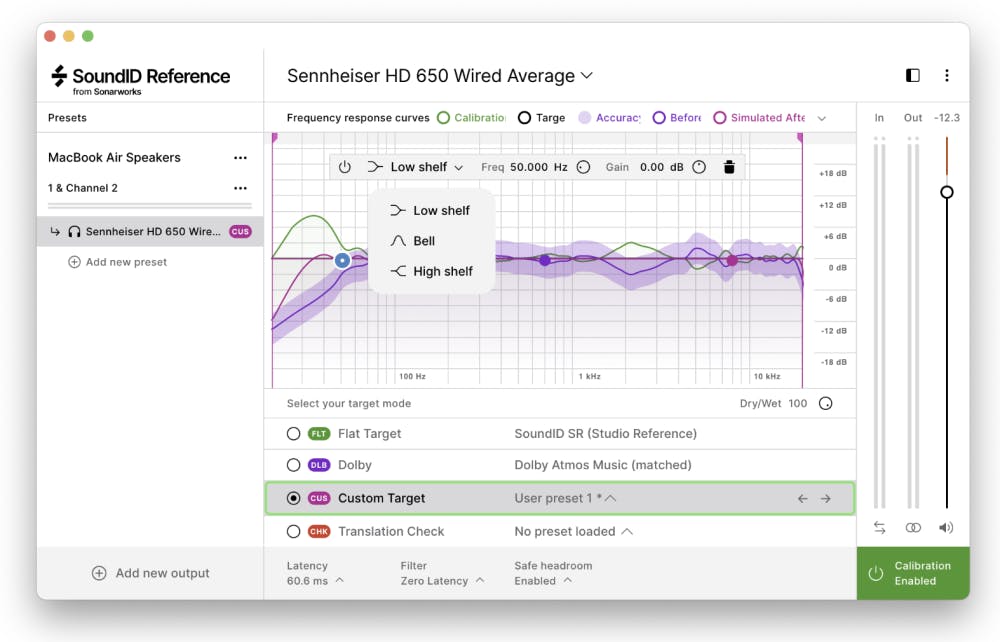
4. Translation Check — A library of 25 predefined simulations that let you preview how your mix will sound on specific real-world playback devices without leaving your studio. Categories include cars, smartphones, laptops, TVs (including Japanese 46″ TV, Korean 60″ TV, and TV Average), studio speakers (Mixcubes, NS11), headphones (any of the 500+ supported models), and legacy calibration standards (B&K 1974 Speaker Target, X-Curve, and Tilt at 2 dB, 4 dB, and 6 dB). Each target includes an informational description explaining its practical value, and you can favorite targets for quick access.
What is a target curve in audio calibration?
A target curve is a reference frequency response that defines how your monitoring system should sound after calibration. It’s the baseline against which all your mixing decisions are measured.
The calibration process works by measuring your system’s actual frequency response — capturing room reflections and speaker coloration for speakers, or the manufacturer’s tuning signature for headphones — and then creating correction filters that bring the response in line with the target curve. This correction happens in the digital domain via the SoundID Reference standalone app (systemwide) or DAW plugin.
Different targets serve different purposes. A flat curve gives you the most neutral, uncolored monitoring. A Dolby Atmos curve aligns your room with the industry standard for immersive mixing. A Translation Check target simulates a consumer device so you can check your kick drum on a smartphone or your vocal balance in a car — without leaving your chair.
The key distinction with SoundID Reference is that the flat target for speakers and headphones is designed to sound the same. The headphone target doesn’t simply aim for a “flat” electrical frequency response (which would sound unnatural on headphones due to the absence of room interaction and ear-canal physics). Instead, Sonarworks’ proprietary PAPFR (Perceived Acoustic Power Frequency Response) technology measures headphones as perceived by the human ear, so the corrected headphone output matches the tonal character of calibrated speakers in a treated room.
What is the difference between flat and tilted target curves?
The Flat Target in SoundID Reference provides neutral frequency response based on the SoundID SR standard. It’s what the majority of professional engineers use for everyday mixing and mastering work, because it gives the most uncolored representation of your audio.
Tilted curves introduce a gentle slope across the frequency spectrum — usually a slight high-frequency rolloff. SoundID Reference includes Tilt options at 2 dB, 4 dB, and 6 dB, available within Translation Check under the “Other” category. Many experienced mastering and mix engineers prefer monitors that sound flat from 20 Hz up to around 1 kHz and then smoothly roll off toward 20 kHz, landing 3–5 dB down at the top end. The ideal amount of rolloff depends on your room treatment, reverb times at different frequencies, and typical monitoring volume.
Why might you use a tilt instead of flat? In a well-treated room, calibrated flat speakers naturally produce a response with a subtle high-frequency rolloff at the listening position (because high frequencies are more readily absorbed by room treatment). If your room is relatively live or bright, a small tilt can bring your perception closer to what you’d experience in a properly treated environment. For genres where extended monitoring sessions are common, a gentle tilt can also reduce listening fatigue.
That said, the recommended approach is to start with the Flat Target and only experiment with tilts once you’ve spent time getting familiar with neutral monitoring. Building your reference point on flat gives you a consistent foundation across all projects.
Can you create a custom house curve in SoundID Reference?
Yes. The Custom Target mode is a dedicated parametric EQ applied on top of the calibration curve. You can add multiple filter bands — each with Shelf or Bell type, adjustable Q factor, gain, and frequency — to shape the target to your taste. This is what’s commonly referred to as a “house curve” in studio calibration. For a deeper look at how studios use house curves in practice, including data on how over 100,000 studios customize their monitoring, see our article on mixing with the proper frequency response and a house curve.
Common house curve adjustments include a low-shelf boost below 80–100 Hz for engineers who prefer more bass presence during monitoring, a gentle high-frequency rolloff for long mixing sessions, or a slight presence boost around 2–4 kHz for vocal-centric work.
Custom Target presets are saved as .json files and stored locally on your system (macOS: ~/Library/Application Support/Sonarworks/SoundID Reference/Sonarworks Projects/Custom Target presets; Windows: C:\Users[username]\AppData\Local\Sonarworks\SoundID Reference\Sonarworks Projects\Custom Target presets). These files can be transferred between devices and shared with colleagues, so your entire team can work against the same house curve.
One important workflow note: Custom Target changes are not auto-saved. Always save your preset before switching to a different target mode or quitting the app, and note that changes must be saved to a new file — the existing file cannot be overwritten.
How does SoundID Reference handle headphone target curves differently from speakers?
This is one of the most misunderstood aspects of studio calibration. For speakers, “flat” is relatively straightforward — a measurement microphone at the listening position should register a flat frequency response across the audible spectrum.
Headphones are far more complex. A headphone driver sitting directly on your ear doesn’t interact with a room, and your ear canal and pinna shape how you perceive different frequencies. A truly “flat” electrical response measured on a headphone would sound unnatural — typically bright and thin — because it lacks the natural room interaction your ears expect.
SoundID Reference solves this with the SoundID SR headphone target, which is designed to emulate neutral-sounding speakers in a treated room. The goal is that switching between calibrated speakers and calibrated headphones produces the same tonal perception, so your mixing decisions translate between the two. For the full technical rationale behind this approach, see the SoundID SR white paper.
Sonarworks achieves this through their proprietary PAPFR measurement technology, which measures headphone frequency response as perceived by the human ear rather than by a measurement microphone alone. The available average calibration profiles in SoundID Reference are summaries from multiple units of the same headphone model, because even identical models vary in frequency response from unit to unit.
A frequently asked question is whether SoundID Reference supports the Harman target curve. It does not offer the Harman curve as a built-in preset. However, you can approximate a Harman-style response using the Custom Target parametric EQ — adding a bass shelf boost and adjusting the treble region to match the Harman over-ear or in-ear curves. For engineers who want to check their mix against Harman-style tuning, this is the current workaround within SoundID Reference. For background on the research behind the Harman curve, Dr. Sean Olive’s paper The Perception and Measurement of Headphone Sound Quality in Acoustics Today provides a thorough overview of how the curve was developed through controlled listener preference tests across hundreds of participants worldwide.
How do you choose the right target curve for your studio?
For most mixing and mastering work, start with the Flat Target (SoundID SR). This neutral reference is what the majority of studios use and gives you the most consistent foundation for making decisions that translate across playback systems.
If you’re working on Dolby Atmos content, switch to the Dolby Atmos Music target for your immersive mixing sessions. This ensures your spatial positioning and tonal decisions align with the Dolby standard that certified Atmos rooms are tuned to. The Dolby target is a fixed mode — it doesn’t allow further adjustments, unlike Custom Target. Sonarworks has also recently partnered with Dolby on Atmos Personalization, bringing personalized headphone profiles to Dolby Atmos creators through the upcoming SoundID Reference Tools mobile app.
Use Translation Check regularly throughout your mixing process. Checking how your low end translates on a smartphone, or how your midrange balance holds up on a car stereo or TV, can catch problems before they reach your client. This is especially valuable if you create audio for a specific device category — you can tailor the sound for optimal translation on that platform.
Consider Custom Target if your room or personal preference consistently benefits from a specific adjustment. But be deliberate about it — using the same house curve across projects builds familiarity and consistency, which matters more for mix accuracy than any single EQ adjustment.
For headphone-only workflows, SoundID Reference’s Virtual Monitoring add-on takes this further by simulating a spatial speaker listening experience on headphones. It includes three virtual speaker types (near field, mid field, and far field) and 10 spatial simulation targets for Translation Check, including cars, laptops, smartphones, and TVs. The newer Virtual Monitoring PRO goes even further — it uses a purpose-built USB binaural in-ear microphone to capture how your actual room and speakers sound from your own ears, creating a personalized acoustic profile that reproduces your studio monitoring on any over-ear headphones. Learn more about how Virtual Monitoring PRO works and what it includes.
Additional DSP features that work alongside target curves
Target curves don’t operate in isolation. SoundID Reference includes several complementary DSP features:
Filter types — Choose between Zero Latency mode (for live tracking and recording), Mixed mode (for general flexibility), or Linear Phase mode (to eliminate phase distortion in the correction, preferred for critical mixing).
Listening Spot — Adjusts the stereo image calibration for your specific seating position. Available for both stereo and multichannel setups.
Limit Controls — Restrict the frequency range that calibration affects. Useful if you want to avoid correcting extreme low-end frequencies that your speakers can’t physically reproduce, or if you want to focus correction on a specific range.
Safe Headroom — Enabled by default, this feature prevents clipping from calibration gain adjustments by automatically reducing the output gain. If you notice a volume drop after calibration, this is Safe Headroom at work — compensate by increasing your audio interface output.
Key takeaways for optimising your SoundID Reference setup
Start with the Flat Target (SoundID SR) for most work — it’s the default for a reason, and the majority of professional studios stick with it. Get familiar with neutral monitoring before experimenting with custom curves.
Use Translation Check as a regular part of your mixing workflow, not an afterthought. Checking your mix on simulated smartphones, cars, and laptops catches real-world translation problems early. The Tilt presets (2 dB, 4 dB, 6 dB) live under Translation Check > Other if you want to experiment.
If you work in Dolby Atmos, use the dedicated Dolby target — it’s been mathematically translated to account for the difference in measurement methodology between SoundID Reference and Dolby’s own tuning process.
Remember that target curves work best alongside proper room treatment and speaker placement. SoundID Reference can correct frequency response problems, but it works most effectively when combined with good acoustic fundamentals. Recalibrate when your room or equipment changes.
Whether you’re calibrating headphones, a stereo pair, or a full multichannel Atmos system up to 9.1.6, choosing the right target curve is one of the most impactful decisions in your monitoring setup. It determines the foundation of every mixing decision you make.
Ready to hear the difference accurate monitoring makes? Try SoundID Reference free for 21 days — fully functional, no credit card required. Headphone calibration starts at €99, with speakers and headphones at €249. Already on Reference 4? Check out the upgrade options and what’s changed. Start your free trial here.


